

As you become more familiar with reporting your organization’s copyright usage, the
ONE LICENSE team would like to present to you a few things that you maybe didn’t know you could do when reporting copyright usage. In this article, we will cover (1) the Duplicate feature for reporting titles into multiple reporting weeks, (2) the option to report an entire list, and (3) the Weekly Report sub-menu.
Would you prefer to have this explained in a video? Have a look at our ONE LICENSE LIVE! - 201 (2025) webinar.
(1) Duplicate: Copy Reported Titles into Additional Reporting Weeks
This feature is a useful tool for organizations that use the same titles over multiple weeks. With just a few clicks, you can copy an entire week of reporting and paste those same titles into additional weeks.
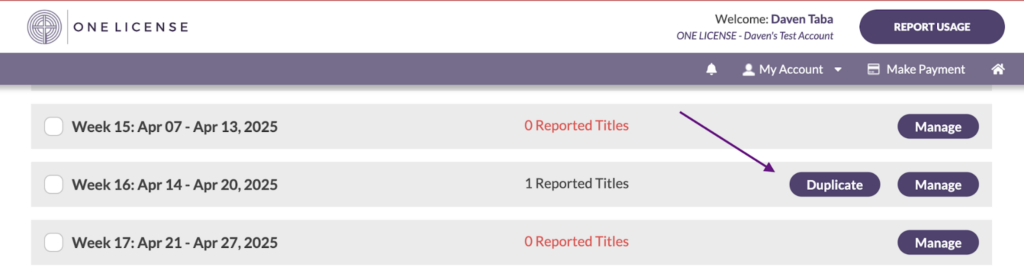
To copy all the titles from one reporting week into another, select the purple REPORT USAGE button in the upper right corner of your screen. Select the “Duplicate” button next to the appropriate week. Please note, at least one title must have been reported in a Report Week for the “Duplicate” feature to show.
In the pop-up window, choose the week(s) into which you want to paste these titles.

In the screenshot above, you will see that we have chosen to copy Week 16 into Weeks 19 and 20. We can add more weeks by clicking the dropdown menu and choosing the additional weeks.
Click “Copy Songs” and all titles from the Week 16 report will appear in the chosen weeks.
There are a few things to note:
- If you want to duplicate a report into a week that already has reported titles, the new titles will be added to the existing titles in that report. No titles will be deleted or replaced.
- If there is a common title in both reports, that title will only appear once, and the number of services will not be changed.
- We recommend reporting and duplicating the titles you know you will use every week first, and then reporting any additional titles in the appropriate week(s).
(2) Report an Entire List into a Report Week
If you are a License Holder who regularly uses the List feature for reporting, this tip is for you. Perhaps you use the same titles every week during particular seasons like Lent and Advent, or you repeat music from week to week for other reasons.
To report all titles from a List into a single week’s report, click Manage (REPORT USAGE > Manage) to select a report. Once in the week’s report, scroll down to “Quick Reporting Tools.” On the right side of the screen, you will see an option to “Report Titles from a List.” Click on this dropdown menu to see the names of all Lists you have created. Choose the list that you wish to report and click Apply. All titles from that List have now been added to the week’s report.

For more information on the List feature, please reference: Making and Managing Lists.
(3) Weekly Report Menu
When looking at your reported titles for a given week (REPORT USAGE > Manage), you will see an arrow in the upper right corner. Click on the arrow to see a dropdown list of available options.

Download all Available Files Download all files for titles reported in a particular week. Please note that selecting this option will download all files from all available resources.
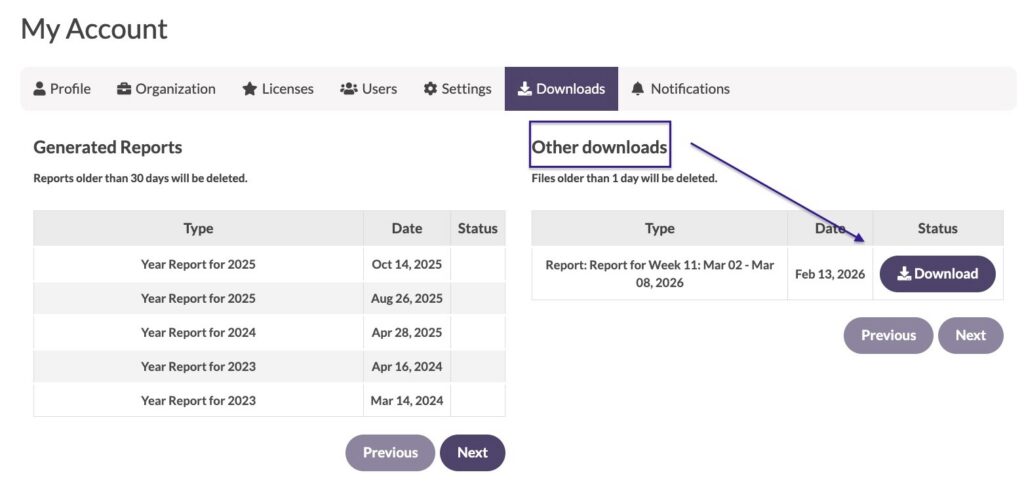
When you click Download all Available Files, a popup window will appear: click Show Downloads to be taken to your Downloads page (My Account > My Account > Downloads). Under “Other downloads” click the purple Download button to download the file(s). The downloaded files will be deleted from your ONE LICENSE account after one day.
Download Report as PDF: Download a PDF of the selected week’s reported titles directly to your computer. Look for the file on your device, probably in your Downloads folder or according to your computer’s settings. (This PDF will not appear in My Account > My Account > Downloads.)
Save this Report as List: Save the selected Report Week’s titles as a List in your account. Choose Select List to add these titles to an existing List in your account. Choose Enter Name to create a new List; you can edit and/or add to this list any time. Click Save and Manage List to save your list and navigate to My Account > Manage Lists. Or click Save and Stay on Report to stay in that Report Week.


Report List of SKUs: We recommend searching our database by title and contributor’s last name, but you can also report by using SKU numbers. The SKU, sometimes called the unique song number, is a code assigned by the Member Publisher consisting of numbers and/or letters. SKUs are unique to that Member Publisher’s catalog. The SKU is found to the right of the title in the database record.
You may choose to keep a list of SKUs for the titles you report most frequently.

Select “Report List of Skus” and enter your SKU numbers. Click Submit. Confirm the titles that generate from the SKUs you entered, choose the Report Week, and click Submit.


A few things to note if you choose to report this way:
- The default reporting date is the earliest reporting week in the 20-week reporting window. You will have to choose the correct week from the dropdown menu each time.
- Once you’ve reported your titles, use the pencil icon to edit the number of services for each title according to your usage.
Delete All Reported Songs: A quick and easy way to delete all the titles from a particular Report Week. But be cautious: this action cannot be undone! When you click the option to “Delete All Reported Songs,” the system will ask if you are sure you want to delete all reported titles. Click Yes to confirm.

Do you need a refresher? Here are some helpful resources:



As always, if you have any questions or concerns, feel free to reach out to the ONE LICENSE team at info@onelicense.net. Many of us were once License Holders (some still are), so we have firsthand experience reporting titles for our organizations. We are happy to help!
Featured image background photo, used with permission from Pexels. Photo by Jessica Lewis 🦋 thepaintedsquare. This image is available for download at www.pexels.com.
